Showing posts with label Chrome. Show all posts

Monday, June 29, 2015

#84 Chrome - 3 Basic Troubleshooting Steps

Hi ya!

If you’re having issues with your Chrome browser, then I have three basic suggestions for you to try.

3 Basic Troubleshooting suggestions

(#1) Reboot your device.

Sometimes a minor glitch can cause Chrome to mess up.
This glitch can happen on any type of device. From mobile (Android, iOS) to desktop (Windows, Mac).
Other times, your device may have to update and you just don’t know about it! Restarting the device may trigger the update that could fix the issue.

(#2) Test it out on another browser.

If Chrome is messing up, seeing if you experience same issue on another browser is a good way to find out whether if the issue is just browser related or something deeper.
For example, is Facebook loading funny? The fonts  looking funny? Images not displaying correctly?
Well, let’s see if Facebook operates properly on Internet Explorer, Firefox, Opera, Safari (for Mac users). Those are just to name a few popular browsers. There’s more for you to choose from.
If the problem appears to be working fine on the other browsers, then the issue could be with only Chrome.
Now, if the issue occurs on the other browsers, then it could be something more troublesome.
In that case, here’s what I suggest:
  1. If you’re a Windows user, ask the Windows Community.
  2. If you’re a Mac user, ask the Mac Forum.

(#3) Try it out in Incognito Mode.

Sometimes your Chrome browser will work smoother in Incognito mode. Have you ever wondered why? The main reason that I can think of is usually, no third party apps / extensions enabled in Incognito mode.
These apps and extensions (usually, extensions added to the Chrome browser) may cause issues to Chrome.
Browsing Chrome in Incognito is a great way to tell if the third party add-on is the culprit.
To browse Chrome in Incognito mode, follow the instructions below.
  1. Launch the Chrome browser.
  2. Click the Control menu on the top right of the browser.
  3. From there, click New Incognito Window.
  4. And that opens up Chrome in the private browser. Now you can test and see if the issue still happens in Incognito mode. If it does, then it’s most likely an extension causing the problem. Uninstalling the extension > browsing the web in normal Chrome (non-Incognito) > is the issue resolved? If so, GREAT! If not, well, that’s another blog in itself...

And that is 3 basic troubleshooting steps for you to try and see if they fix your Chrome browser!

For further reference:

If you’d like to learn more, you can check out the Google Help Center.
If you have a specific question that the Help Center doesn’t cover, then you can ask your question on the Google Product Forum.

Thanks for reading!
Hopefully you enjoyed the read and learned something new.
If you did enjoy reading, then don’t forget to share your newly learned wisdom on social media sites such as Facebook, Twitter, Google Plus, etc.

Is there anything that you’d me to blog about? If so, then post your suggestion in the comment section.

Best of Luck,
▬▬▬▬▬▬▬▬

W.C. Blitzy

Tuesday, June 16, 2015

#80 Chrome - Report Feedback on the Chrome App Launcher


Hi ya!

The  Chrome App Launcher is a place where Google keeps all the apps you’ve installed from the Chrome Webstore.

If you have any suggestions for Google on how they could improve the App Launcher, or if you find a bug in it, then you could report it.

Report Feedback on the Chrome App Launcher [Text version]
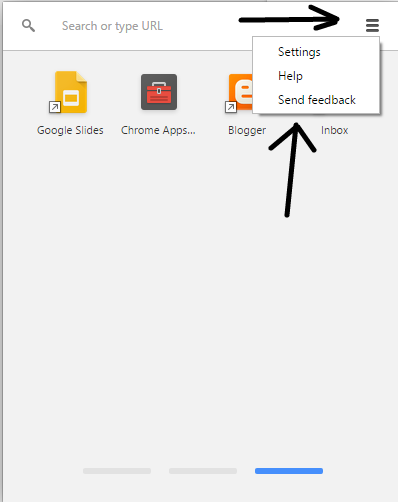
  • Launch the App Launcher
  • Click on the settings menu (three horizontal line bar at the top right of the Launcher)
  • Then click Send feedback
  • Follow the prompt

Report Feedback on the Chrome App launcher [Image version]
  • Capture 19.PNG
  • Capture 20.PNG
  • Capture 21.PNG
  • Capture 22.png
  • Capture 23.PNG

And that is how you report feedback on the Chrome App Launcher!

For further reference:

If you’d like to learn more, you can check out the Google Help Center.
If you have a specific question that the Help Center doesn’t cover, then you can ask your question on the Google Product Forum.

Thanks for reading!
Hopefully you enjoyed the read and learned something new.
If you did enjoy reading, then don’t forget to share your newly learned wisdom on social media sites such as Facebook, Twitter, Google Plus, etc.

Is there anything that you’d me to blog about? If so, then post your suggestion in the comment section.

Best of Luck,
▬▬▬▬▬▬▬▬

W.C. Blitzy

Tuesday, June 9, 2015

#78 Chrome - Support Options

Hi ya!

If you’re using the Chrome browser, at some point Chrome is going to break.
When Chrome breaks, you’ll have to fix it.
But how will you fix Chrome? Can you contact someone from Google to help you? A Chrome Specialist?

Google does not offer you, the user of Chrome, any way to contact them for support on their free product, Chrome.
That means you can’t call Google asking them why Chrome won’t load a webpage.
That means you can’t email Google asking them why Chrome won’t update.
That means you can’t have a live conversation (live chat) with Google asking them why you can’t launch Chrome.

So, what do you do?

You can search around on the internet.
Look up your issue and see if you can find anything out on the web to solve your problem.
If nothing good comes from that search, check out Google’s Help Center > Chrome.
About 70% of the time, your issue can be solved by checking out the Help Center that was so kindly provided by Google.
Then, if you couldn’t solve your question from checking out the Help Center, what you do is post your question at Google Product Forum (GPF).
You can post your question on the Chrome forum.

GPF is moderated by Googlers.
And volunteers who are passionate about Google products (in this case, Chrome), post in GPF assisting users with their questions.

And that is your support options for Chrome!

For further reference:

If you’d like to learn more, you can check out the Google Help Center.
If you have a specific question that the Help Center doesn’t cover, then you can ask your question on the Google Product Forum.

Thanks for reading!
Hopefully you enjoyed the read and learned something new.
If you did enjoy reading, then don’t forget to share your newly learned wisdom on social media sites such as Facebook, Twitter, Google Plus, etc.

Is there anything that you’d me to blog about? If so, then post your suggestion in the comment section.

Best of Luck,
▬▬▬▬▬▬▬▬

W.C. Blitzy

Saturday, April 25, 2015

#64 Chrome - Send Feedback to Google about the Enhanced Bookmarks

#64 Chrome - Send Feedback to Google about the Enhanced Bookmarks

Hi ya!

On Chrome version 42, Chrome released an update to the bookmarks.
It was a pretty big update.
I’m sure that if you're using the new bookmark system (now called Enhanced Bookmarks), there is probably a feature that you would like to see or something that you think should be removed.

Well, if you didn't know, you can send your feedback to Google about the Enhanced Bookmarks from within the bookmarks manager!
Want to learn how? Keep reading!

Send feedback to Google about the Enhanced Bookmarks
  • First, you must go to Bookmarks manager. To get there, you right-click on the Bookmarks bar > Bookmarks manager
  • From there, right next to Sign In, you'll see a gear icon.
    bookmark.jpg
  • Click the gear icon > click Send feedback
    bookmark 2.jpg
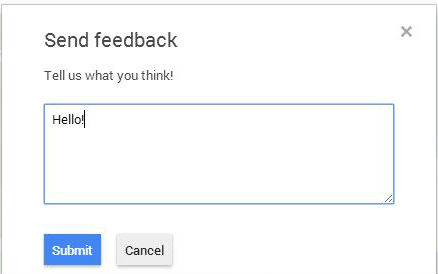
  • A dialog popup appears > type in your feedback and click Submit
    bookmark 3.jpg

And that is how you send feedback to Google about the Enhanced Bookmarks!

To Summarize:
  • Go to Bookmarks manager (right click bookmarks bar > Bookmark manager)
  • Click the gear icon right next to Sign in
  • Click Send feedback
  • Type in your feedback

References:
None!

For more information, check Google’s help center!
Talk to Chrome users just like you!

Thanks for reading!

If you enjoyed reading this blog post, please share it on social media sites such as Facebook, Twitter, Google +, etc. That’ll help me out a lot!

See an improvement? Tell me in the comment section!

Is there something you want me to blog about? Post that in the comment section as well!

Best of Luck,
▬▬▬▬▬▬▬▬
W.C. Blitzy
Saturday, April 18, 2015

#63 Chrome - Disable Hardware Acceleration

Hi ya!

Have you ever come across a page that is not displaying right? The text is in the center of the screen, the images are not appearing, and it’s just not looking very good.
Well, with this blog post, I’m going to show you one tip that might solve the issue.
And that is Disable Hardware Acceleration.

Disable Hardware Acceleration

If you’re having one of the issues above, then disabling hardware acceleration may solve the issue.
  • Open Chrome
  • Click on the Chrome Menu
  • Select Settings
  • Scroll to the bottom of the page > click Show advanced settings
  • Find the category System and uncheck the checkbox where it says Use hardware acceleration when available
  • You’ll then be required to restart your device for the changes to take place

And that is how you disable hardware acceleration.

Summarize:
  • Open Chrome
  • Click on the Chrome Menu
  • Select Settings
  • Scroll to the bottom of the page > click Show advanced settings
  • Find the category System and uncheck the checkbox where it says Use hardware acceleration when available
  • You’ll then be required to restart your device for the changes to take place

References:

For more information, check Google’s help center!
Talk to Chrome users just like you!

Thanks for reading!

If you enjoyed reading this blog post, please share it on social media sites such as Facebook, Twitter, Google +, etc. That’ll help me out a lot!

See an improvement? Tell me in the comment section!

Is there something you want me to blog about? Post that in the comment section as well!

Best of Luck,
▬▬▬▬▬▬▬▬

W.C. Blitzy