Showing posts with label Google Play. Show all posts

Sunday, June 7, 2015

#77 Gmail - Standard view/Basic view

Hi ya!

When accessing your Gmail account, you have the option to view your Gmail messages two different ways: Standard view and Basic view (HTML view).
We’re going to be going over the two.

Standard view
Standard view is for supported browsers and for strong internet connections.
With Standard view, you’ll have access to all of Gmail’s features.

Basic view (HTML view)
Basic view is for unsupported browsers and slow(er) internet connections.
With Basic view, you don’t get all of Gmail's features.
  • Keyboard shortcuts
  • Spell checker
  • Chat
  • Adding / importing contacts
  • Custom from addresses
  • Rich formatting
Sometimes, if you having Gmail issues, one good troubleshooting suggestion is to try to load Gmail in Basic view.

Link to Standard view Gmail: https://mail.google.com/mail/
Link to Basic view Gmail:

For further reference:

If you’d like to learn more, you can check out the Google Help Center.
If you have a specific question that the Help Center doesn’t cover, then you can ask your question on the Google Product Forum.

Thanks for reading!
Hopefully you enjoyed the read and learned something new.
If you did enjoy reading, don’t forget to share your newly learned wisdom on social media sites such as Facebook, Twitter, Google Plus, etc.

Is there anything that you me to blog about? If so, then post your suggestion in the comment section.

Best of Luck,
▬▬▬▬▬▬▬▬
W.C. Blitzy

Saturday, May 30, 2015

#75 Google Play - Report Feedback on Google Play Music

Hi ya!


When going to your music on Google Play Music, do you see an improvement that could be made to the site? A feature that you’d like to see?
If so, then you can report feedback!


Report Feedback on Google Play Music [Text version]
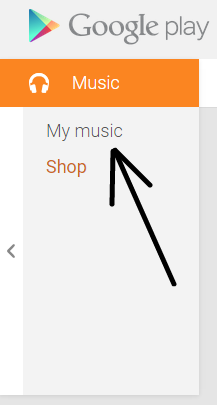
  1. On the left side of the page, right under Music there’s My Music.
  2. Click My Music.
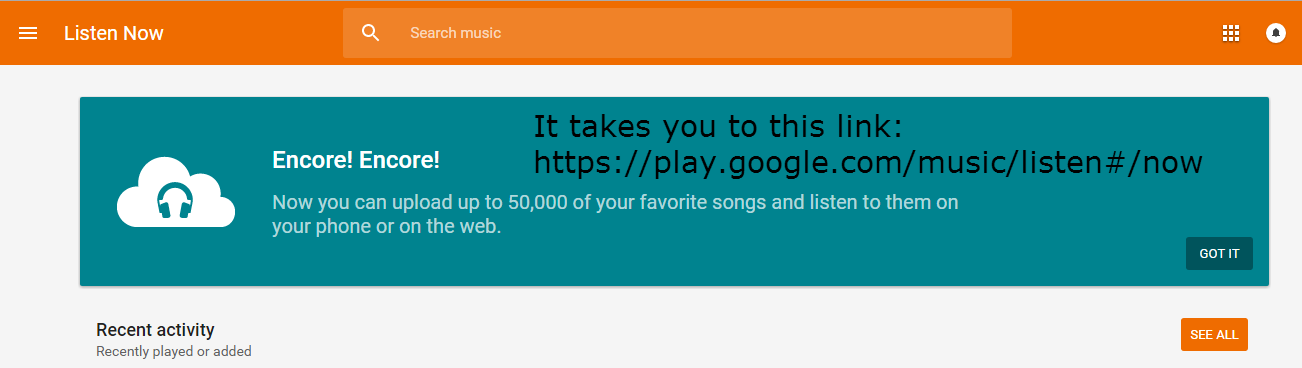
  3. It should bring you to this page.
  4. On the left side, click the hamburger menu (3 horizontal line menu).
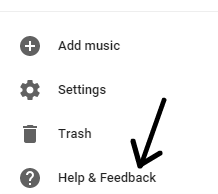
  5. Scroll all the way down the menu until you see Help & Feedback.
  6. Click Help & Feedback.
  7. A popup dialog appears.
  8. Within that dialog, you can search for help. Or ask a question. But, if you want to send feedback, then at the bottom of the dialog, click Send Feedback.
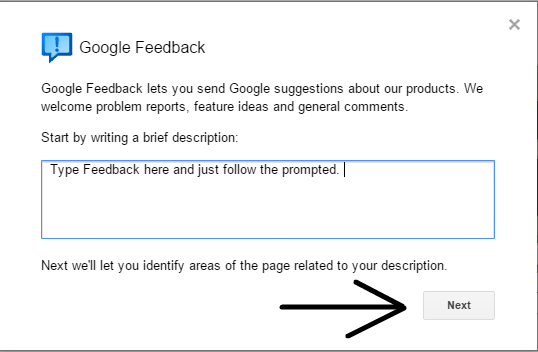
  9. That opens up a pop up and closes out of the other. On that pop up, you can write your feedback.
  10. Once you’ve written your feedback, just follow the prompted.


And that is how you Report feedback on Google Play Music!


Report Feedback on Google Play Music [Image version]
  1. Capture (2).png
  2. Capture (8).PNG
  3. Capture (9).PNG
  4. Capture (4).PNG
  5. Capture (5).PNG
  6. Capture (6).PNG
  7. Capture (7).PNG


And that is how to send feedback to Google Play Music!


For further reference:


If you’d like to learn more, you can check out the Google Help Center.
If you have a specific question that the Help Center doesn’t cover, then you can ask your question on the Google Product Forum.


Signing off.


Thanks for reading!
Hopefully you enjoyed the read and learned something new.
If you did enjoy reading, then don’t forget to share your wisdom on the social media sites such as Facebook, Twitter, Google Plus, and all that fun stuff.


Is there a certain product that you want me to blog about?
If so, then post it in the comment section!


Best of Luck,
▬▬▬▬▬▬▬▬
W.C. Blitzy

Wednesday, April 29, 2015

#67 Google Play - Reporting an App (web & mobile)

Hi ya!

If you found an app on Google Play that is malicious, spam, hateful, and doesn’t match the Google Play Terms of Service , then you can (and probably should) report it.
If you want to learn how to report it--for the web version and mobile--then keep reading!

Reporting an App - web version
  • Open up Google Play
  • Find the app that you want to report
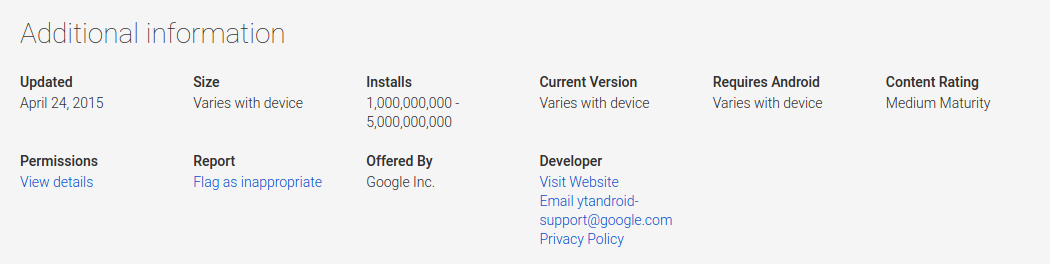
  • Scroll to the category Additional information > Report > Flag as inappropriate
    Screenshot 2015-04-29 at 12.30.14 AM.png
  • A new page opens up. Choose one of the options on the new page

Reporting an App - mobile
  • Open up the Google Play app (app icon looks like this: Google Play Store)
  • Visit the app you wish to report
  • Scroll to the end of the page
  • Tap Flag as inappropriate
  • Select your reason
  • Tap Submit

And that is how you report an app to Google Play!

Summary:

Reporting an app - web version
  • Open up Google Play
  • Find the app that you want to report
  • Scroll to the category Additional information > Report > Flag as inappropriate
  • A new page opens up. Choose one of the options on the new page
Reporting an app - mobile
  • Open up the Google Play app (app icon looks like this: Google Play Store)
  • Visit the app you wish to report
  • Scroll to the end of the page
  • Tap Flag as inappropriate
  • Select your reason
  • Tap Submit

References:

For more information, check Google’s help center!
Talk to Google Play users just like you!

Thanks for reading!

If you enjoyed reading this blog post, please share it on social media sites such as Facebook, Twitter, Google +, etc. That’ll help me out a lot!

See an improvement? Tell me in the comment section!

Is there something you want me to blog about? Post that in the comment section as well!

Best of Luck,
▬▬▬▬▬▬▬▬

W.C. Blitzy
Tuesday, March 17, 2015

#54 Google Play - How to clear Google Play Store app Cache and Data

Hi ya!

Sometimes, when you’re having purchasing issues or downloading app issues on Google Play, clearing the Google Play Store app Cache and Data can fix the issues!
Here’s how!

How to clear Google Play Store app Cache and Data:
  • Go to your device settings menu
  • Go to Applications/Applications Manager
  • Tap on All Applications
  • Search and open Google Play Store app
  • Tap on Clear Data and Clear Cache
  • Reboot your device
  • Then try what you were doing again!
And that is how you clear Google Play Store app cache and data!

To Summarize:
  • Go to your device settings menu
  • Go to Apps/Applications/Applications Manager
  • Tap on All Applications
  • Search and open Google Play Store app
  • Tap on Clear Data and Clear Cache
  • Reboot the device
  • Try it again

References:

For more information, check Google’s help center!
Talk to Google Play users just like you!

Thanks for reading!

If you enjoyed reading this blog post, please share it on social media sites such as Facebook, Twitter, Google +, etc. That’ll help me out a lot!

See an improvement? Tell me in the comment section!

Is there something you want me to blog about? Post that in the comment section as well!

Best of Luck,
▬▬▬▬▬▬▬▬

W.C. Blitzy