Showing posts with label Inbox. Show all posts

Tuesday, June 2, 2015

#76 Inbox - Signatures

Hi ya!


It has happened! Signatures have arrived for Google’s product, Inbox!
However, if you have a Send as account, then Signatures won't work. And, signatures on Inbox don't sync across devices.


Managing Signatures in Inbox [Text version]
  1. Go to Inbox.
  2. Click the three horizontal line menu bar on the top left of the webpage.
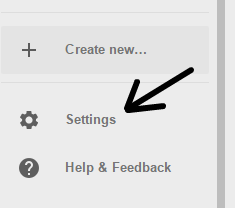
  3. Scroll all the way down on the menu ‘til you see Settings.
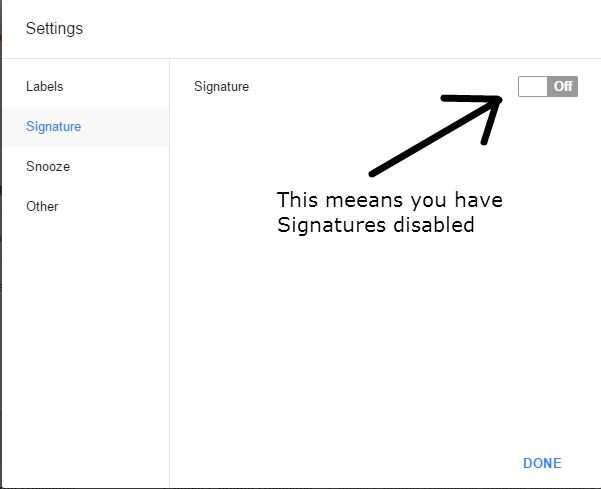
  4. Click Settings > a popup appears. Click the category, Signature.
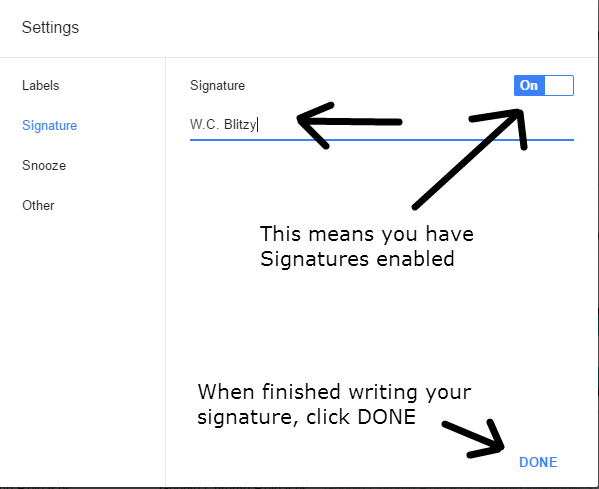
  5. From there, there is a button for you to click. It is the On & Off button. To explain what the button does, if it is On, then that means you have signatures enabled. If the button is Off, that means that signatures is disabled.
  6. Write your signature. Right now, you can’t add images, special font, etc. Just something simple. Your signature on Inbox and Gmail are different. The one on Gmail won’t carry over to Inbox.
  7. Once you’ve written your signature, click Done.
And that is how you work your signature in Inbox!


Managing Signatures in Inbox [Image version]

  1. Capture.PNG
  2. Capture 1.PNG
  3. Capture 2.PNG
  4. Capture 3.PNG
  5. Capture 4.PNG
  6. Capture 5.PNG


And that is how you manage your signatures in Inbox!


For further reference:


If you’d like to learn more, you can check out the Google Help Center.
If you have a specific question that the Help Center doesn’t cover, then you can ask your question on the Google Product Forum.


Thanks for reading!
Hopefully you enjoyed the read and learned something new.
If you did enjoy reading, then don’t forget to share your wisdom on the social media sites such as Facebook, Twitter, Google Plus, and all that fun stuff.


Is there a certain product that you want me to blog about?
If so, then post it in the comment section!


Best of Luck,
▬▬▬▬▬▬▬▬ W.C. Blitzy

Tuesday, May 26, 2015

#74 Inbox - Managing Keyboard Shortcuts

Hi ya!

When checking your Inbox, do you sometimes accidently hit the wrong key on your keyboard?
Did you hit CTRL + Enter and didn’t mean to?
Or what about C? Did you mean to start composing a message?

Or maybe you enjoy using keyboard shortcuts, but have the keys on your keyboard laid out where using CTRL + Enter isn’t practical.

If so, then what you can do is manage Inbox’s keyboard shortcuts! Yup! You can disable them or enable them.
Here’s how.

Managing Keyboard Shortcuts
  • Go to Inbox
  • Click the Inbox Menu
    Capture.PNG
  • Scroll down to the bottom of the Inbox Menu > Settings
    Capture1.PNG
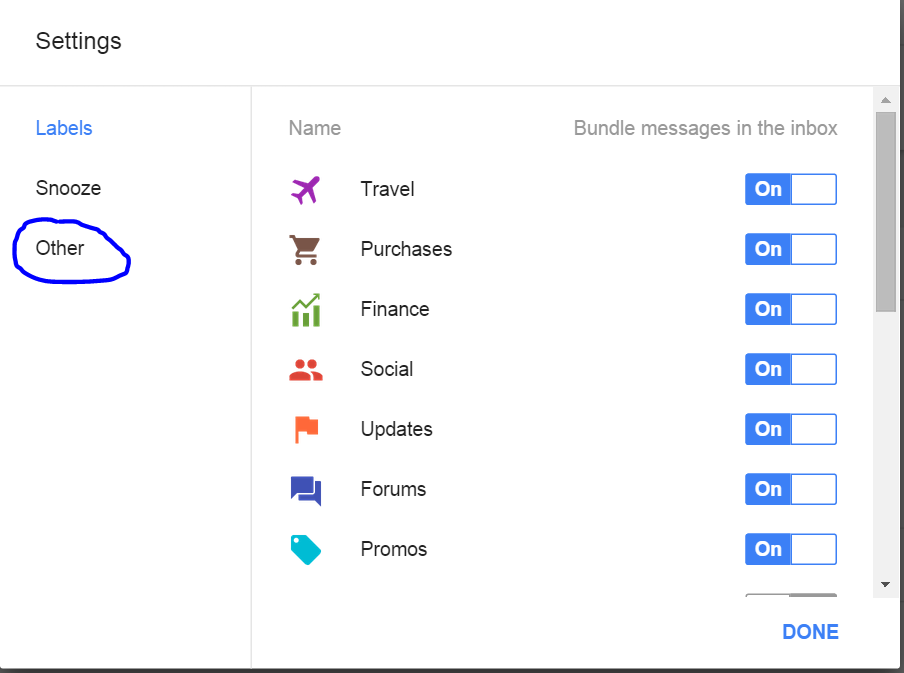
  • After you click Settings, a popup dialog appears
    Capture2.PNG
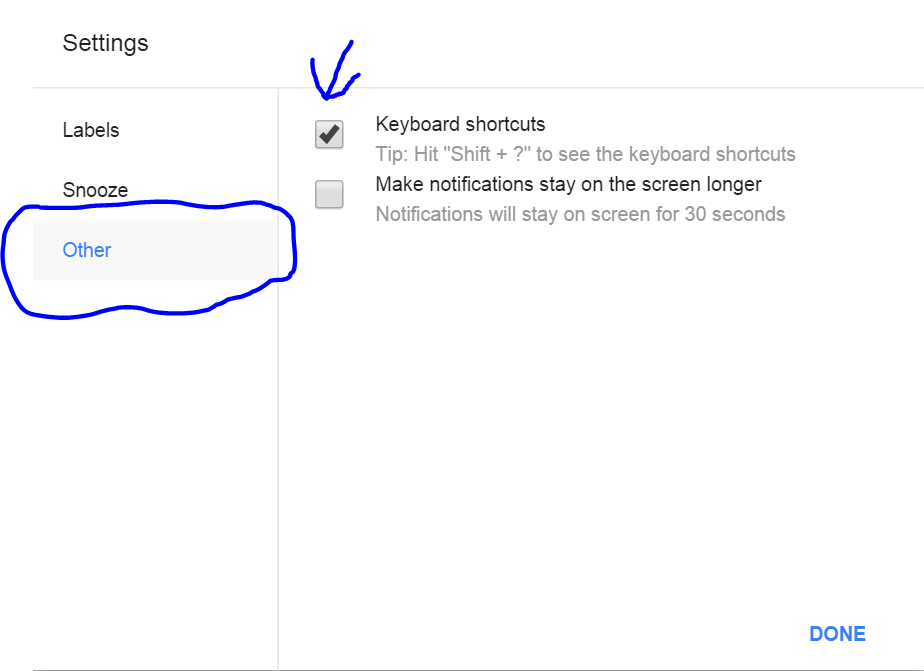
  • Click Other > Keyboard shortcuts
    Capture3.PNG
  • If you leave it checked, then that means enabling keyboard shortcuts
    If you leave it unchecked, then that means that you’ve disabled keyboard shortcuts
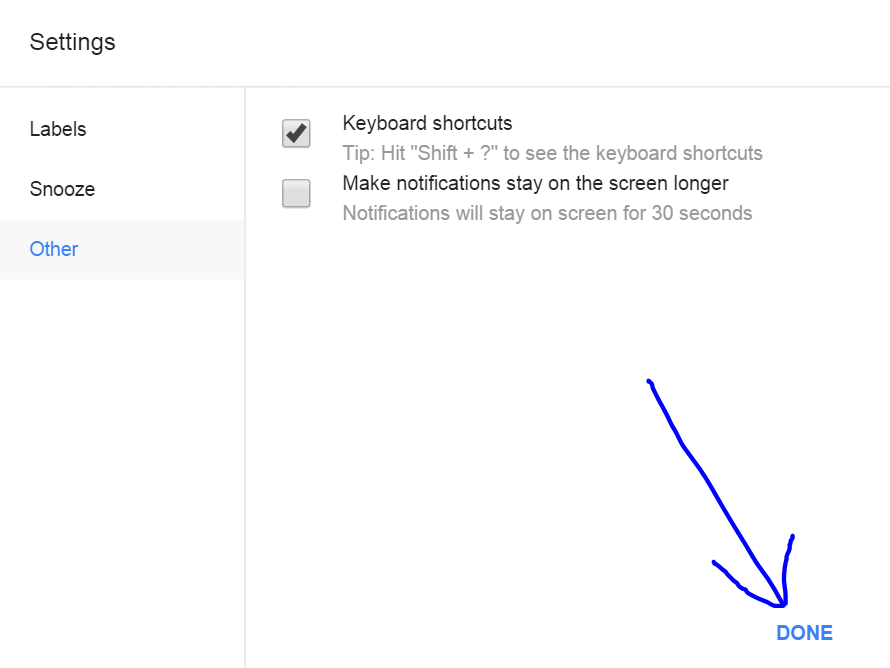
  • When you’ve finished making your changes, click Done at the bottom of the popup.
    Capture4.PNG
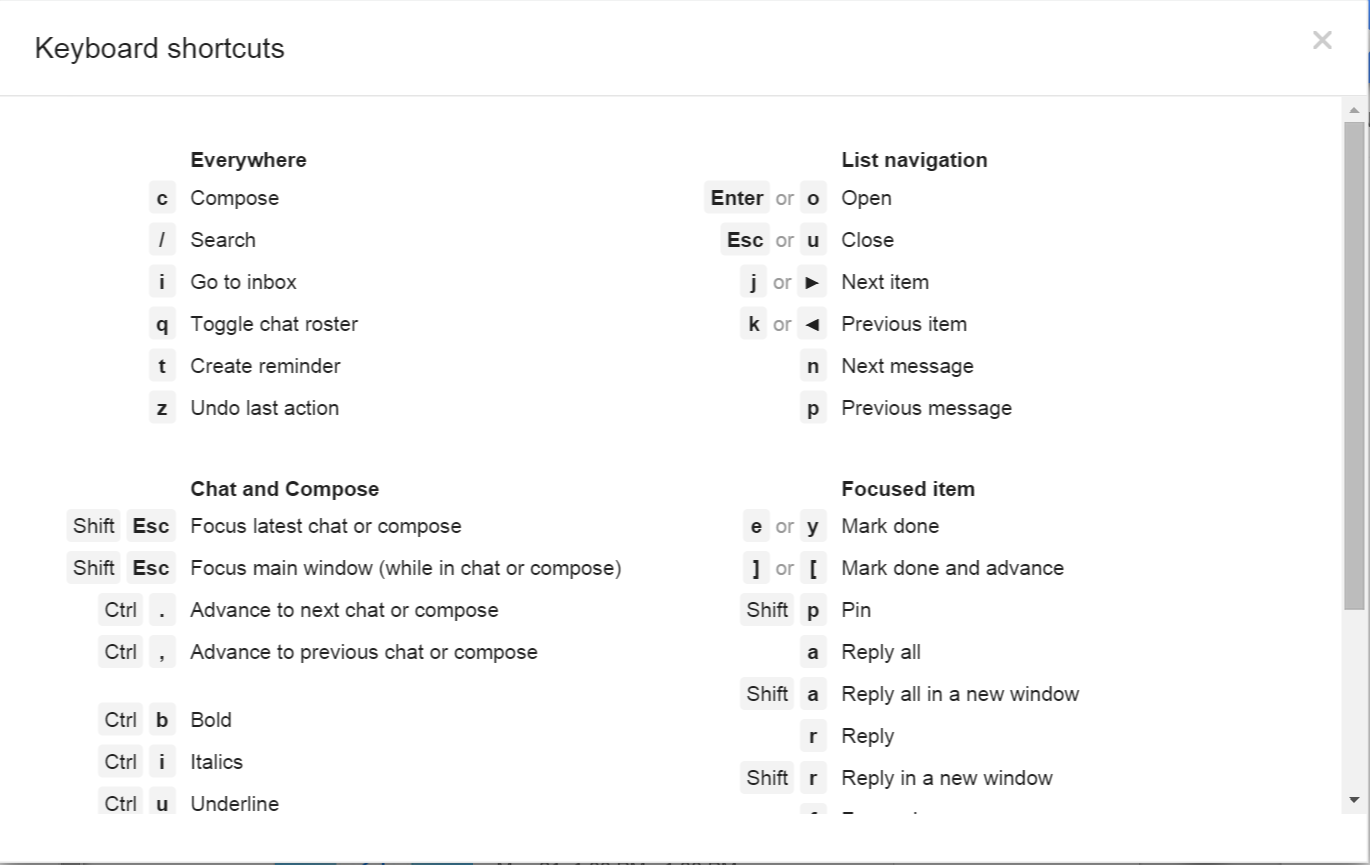
To look at all of the keyboard shortcuts, make sure they are enabled and then use the keyboard shortcut Shift + ? > Shortcut menu appears
Capture5.PNG

And that is how you manage the keyboard shortcuts on Inbox!

Summary:
  1. Go to Inbox
  2. Click the Inbox Menu
  3. Scroll down to the bottom of the Inbox Menu > Settings
  4. After you click Settings, a popup dialog appears
  5. Click Other > Keyboard shortcuts
  6. And you can enable the keyboard shortcuts or disable them
For more information, check Google’s help center!
Talk to Inbox users just like you!

Thanks for reading!

If you enjoyed reading this blog post, please share it on social media sites such as Facebook, Twitter, Google +, etc. That’ll help me out a lot!

See an improvement? Tell me in the comment section!

Is there something you want me to blog about? Post that in the comment section as well!

Best of Luck,
▬▬▬▬▬▬▬▬

W.C. Blitzy
Saturday, May 23, 2015

#73 Inbox - Inbox Forum

Hi ya!

The Google product, Inbox, has gotten so popular that they decided to do the smart thing and create a forum entirely for Inbox questions!
That’s right! As of May 11th, 2015, there is an Inbox Forum!
You can ask any Inbox question at the forum and it will be answered by a knowledgeable Inbox Expert!

Don’t worry, Gmail users! The Gmail Forum is not going anywhere. Google is just separating the two to make it easier on users who have Inbox questions.

And that’s about it!

Thanks for reading!

If you enjoyed reading this blog post, please share it on social media sites such as Facebook, Twitter, Google +, etc. That’ll help me out a lot!

See an improvement? Tell me in the comment section!

Is there something you want me to blog about? Post that in the comment section as well!

Best of Luck,
▬▬▬▬▬▬▬▬

W.C. Blitzy
Saturday, March 14, 2015

#53 Inbox - Contacts in Inbox

Hi ya!

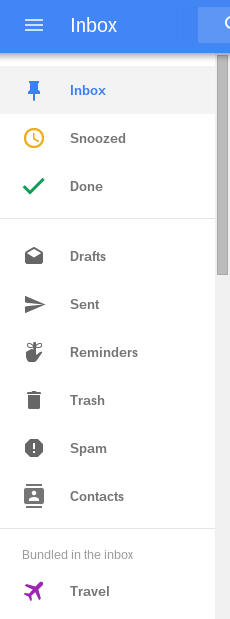
Google has finally done it! They added Contacts in Inbox!
Here’s how to check it out for yourself:

Contacts in Inbox has arrived!
  • Go to Inbox (you have to be on a computer for this. Sorry, mobile users!)
  • Click on the Main Menu on the top left (looks like this: )
  • BAM! There’s Contacts!
    Screenshot 2015-03-13 at 11.48.56 PM.png
So yeah! Contacts are now in Inbox!

To Summarize:
  • Go to Inbox (you have to be on a computer to do this).
  • Click on the Main Menu on the top left.
  • There’s Contacts!

References:
None!

For more information, check Google’s help center!
Talk to Inbox users just like you!

Thanks for reading!

If you enjoyed reading this blog post, please share it on social media sites such as Facebook, Twitter, Google +, etc. That’ll help me out a lot!

See an improvement? Tell me in the comment section!

Is there something you want me to blog about? Post that in the comment section as well!

Best of Luck,
▬▬▬▬▬▬▬▬

W.C. Blitzy
Saturday, January 24, 2015

#38 Gmail - How to Block Someone on Gmail

Hi ya!


Are you receiving emails from an individual that you wish you didn’t receive? You contact him or her and say “Please stop sending me emails!” But the person doesn’t listen!
Do you want to just block the person from sending you emails?
If you do, then this is the blog post for you!


To begin with: You can’t block someone from sending you emails. What you can do is set up a filter system!


Step 1.


Step 2.
Find an email from the sender you wish to use the filter on.


Step 3.
Click the drop box to the right of the person’s name.
Screenshot 2015-01-21 at 7.20.51 PM.png


Step 4.
Select Filter messages like this.
Screenshot 2015-01-21 at 7.png


Step 5.
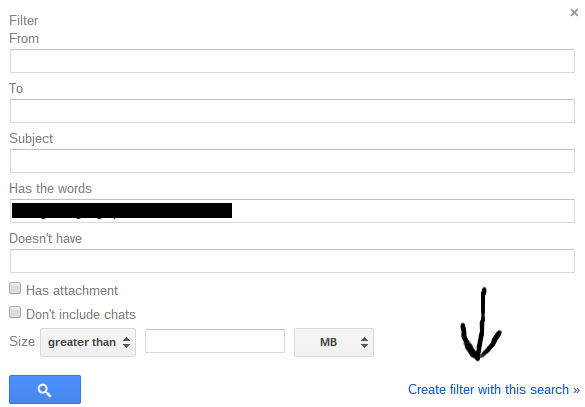
Type in the specifications for the email messages you would like to stop receiving.
Screenshot 2015-01-21 at 7.png


Step 6.
Click Create filter with this search.
Screenshot 2015-01-21 at 7.png


Step 7.

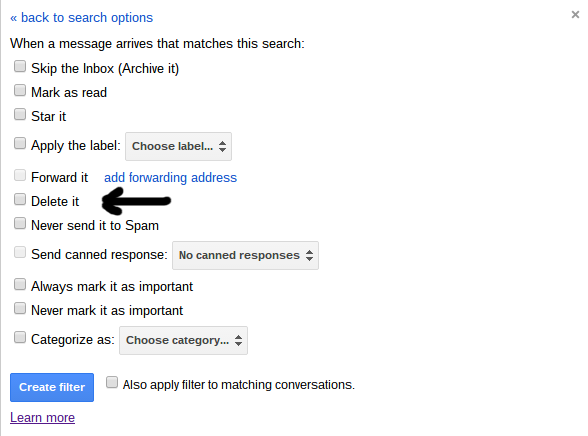
Click Create filter.
If you want to remove all existing messages from that person, click the box next to Create filter named Also apply filter to matching conversations.
Also, make sure that you click the Delete it button too. Otherwise, you'll just create a blank filter which will archive nothing.


And that is how you block someone on Gmail!


To Summarize:
  • Log into your Gmail account
  • Find an email from a sender whose messages you want  to filter
  • Click the drop box to the right of the person’s name
  • Select Filter messages like this
  • Type in the specifications for the email messages you would like to stop receiving
  • Click Create filter with this search
  • Click Create filter


References:


For more information, check Google’s help center!
Talk to Gmail users just like you!


Thanks for reading!


If you enjoyed reading this blog post, please share it on social media sites such as Facebook, Twitter, Google +, etc. That’ll help me out a lot!


See an improvement? Tell me in the comment section!


Is there something you want me to blog about? Post that in the comment section as well!


Best of Luck,


▬▬
▬▬▬▬▬▬

W.C. Blitzy