Showing posts with label Gmail. Show all posts

Sunday, June 7, 2015

#77 Gmail - Standard view/Basic view

Hi ya!

When accessing your Gmail account, you have the option to view your Gmail messages two different ways: Standard view and Basic view (HTML view).
We’re going to be going over the two.

Standard view
Standard view is for supported browsers and for strong internet connections.
With Standard view, you’ll have access to all of Gmail’s features.

Basic view (HTML view)
Basic view is for unsupported browsers and slow(er) internet connections.
With Basic view, you don’t get all of Gmail's features.
  • Keyboard shortcuts
  • Spell checker
  • Chat
  • Adding / importing contacts
  • Custom from addresses
  • Rich formatting
Sometimes, if you having Gmail issues, one good troubleshooting suggestion is to try to load Gmail in Basic view.

Link to Standard view Gmail: https://mail.google.com/mail/
Link to Basic view Gmail:

For further reference:

If you’d like to learn more, you can check out the Google Help Center.
If you have a specific question that the Help Center doesn’t cover, then you can ask your question on the Google Product Forum.

Thanks for reading!
Hopefully you enjoyed the read and learned something new.
If you did enjoy reading, don’t forget to share your newly learned wisdom on social media sites such as Facebook, Twitter, Google Plus, etc.

Is there anything that you me to blog about? If so, then post your suggestion in the comment section.

Best of Luck,
▬▬▬▬▬▬▬▬
W.C. Blitzy

Monday, April 27, 2015

#65 Hangouts - Use Hangouts in Gmail

Hi ya!

Google Talk or Hangouts?
Both are good in their own way.
However, it seems that Google is pushing Hangouts and is removing Google Talk.
With that being said, you may want to enable Hangouts on Gmail to test it out - if you haven’t already.
Here’s how to enable it.

Enable Hangouts on Gmail
  • Launch Gmail.
  • At the top of the Google chat list, click your name (or profile avatar).
Screenshot 2015-04-26 at 5.04.11 PM.png
  • Click Try the new Hangouts.
  • Gmail will then refresh. When it’s done reloading, you then can try Hangouts on Gmail!

“I don’t like the new Hangouts on Gmail! How do I go back to Google Talk?”
Good question!
You can revert to Google Talk at any time.
  • Launch Gmail.
  • At the top of the Google chat list, click your name (or profile avatar).
Screenshot 2015-04-26 at 5.07.45 PM.png
  • Click Revert to old chat.
  • Gmail will refresh. When it has finished reloading, you’ll have Google Talk back!

And that is how you use Hangouts in Gmail!

Summary:
  • Launch Gmail.
  • At the top of the Google chat list, click your name (or profile avatar).
  • Click Try the new Hangouts.
  • Gmail will then refresh. When it’s done reloading, you then can try Hangouts on Gmail!
To disable Hangouts on Gmail:
  • Launch Gmail.
  • At the top of the Google chat list, click your name (or profile avatar).
  • Click Revert to old chat.
  • Gmail will refresh. When it has finished reloading, you’ll have Google Talk back!

References:

For more information, check Google’s help center!
Talk to Hangout users just like you!

Thanks for reading!

If you enjoyed reading this blog post, please share it on social media sites such as Facebook, Twitter, Google +, etc. That’ll help me out a lot!

See an improvement? Tell me in the comment section!

Is there something you want me to blog about? Post that in the comment section as well!

Best of Luck,
▬▬▬▬▬▬▬▬

W.C. Blitzy
Saturday, April 4, 2015

#59 Gmail - How to Search the Web from within Gmail

Hi ya!


Here’s a cool little feature that you may or may not know about.
Did you know that you can use Gmail Search to search the web?
That’s right!
Want to learn? Well then, what are you waiting for? Keep reading!


How to Search the Web from within Gmail


It’s really not hard at all. All you have to do is start searching for whatever you want to search for (for example, search for “Hi ya!”) from within Gmail Search and press Shift + Enter key. Instead of searching for “Hi ya!” on Gmail, it searches for “Hi ya!” using your search engine via the web.
Neat, huh?


Comment down below and tell me what you searched for via Gmail Search.
But please, let’s keep it PG and NOT share any sensitive information.


Summary:
  • To search the web from within Gmail, all you have to do is start searching via Gmail Search.
  • After you’ve typed in what you want to search for (example: “Hi ya!”), press the keys on your keyboard: Shift + the Enter key


References:
None. Just testing out some stuff!


For more information, check Google’s help center!
Talk to Gmail users just like you!


Thanks for reading!


If you enjoyed reading this blog post, please share it on social media sites such as Facebook, Twitter, Google +, etc. That’ll help me out a lot!


See an improvement? Tell me in the comment section!


Is there something you want me to blog about? Post that in the comment section as well!


Best of Luck,
▬▬▬▬▬▬▬▬
W.C. Blitzy

Saturday, March 14, 2015

#53 Inbox - Contacts in Inbox

Hi ya!

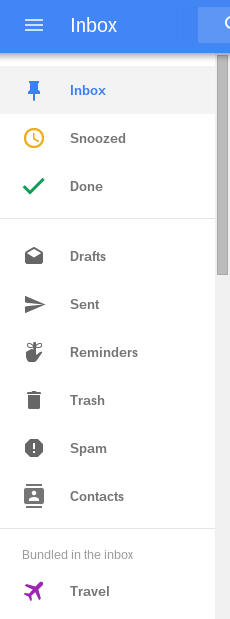
Google has finally done it! They added Contacts in Inbox!
Here’s how to check it out for yourself:

Contacts in Inbox has arrived!
  • Go to Inbox (you have to be on a computer for this. Sorry, mobile users!)
  • Click on the Main Menu on the top left (looks like this: )
  • BAM! There’s Contacts!
    Screenshot 2015-03-13 at 11.48.56 PM.png
So yeah! Contacts are now in Inbox!

To Summarize:
  • Go to Inbox (you have to be on a computer to do this).
  • Click on the Main Menu on the top left.
  • There’s Contacts!

References:
None!

For more information, check Google’s help center!
Talk to Inbox users just like you!

Thanks for reading!

If you enjoyed reading this blog post, please share it on social media sites such as Facebook, Twitter, Google +, etc. That’ll help me out a lot!

See an improvement? Tell me in the comment section!

Is there something you want me to blog about? Post that in the comment section as well!

Best of Luck,
▬▬▬▬▬▬▬▬

W.C. Blitzy

Tuesday, February 24, 2015

#48 Gmail - Support Options

Hi ya!

Have you ever had issues accessing your Gmail account? Forgot your password? Don’t know the security questions?
You Google Search for some help on your issue, but can’t find anything helpful!
You ask yourself “How do I get help from Google?”
After you read this blog post, you should know how to ‘get help from Google’.

About Contacting Google concerning Gmail issues.
If you’re having issues with your Gmail account, and would like to email Google your question(s), well, you can’t. Google doesn't have a Gmail support email address for their free product, Gmail.
Same goes for calling Google regarding your Gmail account.
With there being hundreds of millions of users using Gmail, it’s not feasible for Google to have live support options.

“Well then, what do I do?”
One of the best things for you to do is to take a look at the Gmail Support Center and see if your question(s) are in there.
The next best thing for you to do is to post your question in the Gmail help forum (remember, when posting, add as much detail as you can. For more information on how to correctly post in Google Product Forums, see this blog post.) Gmail experts will take a look at your question and do their absolute best to solve the issue….about 90% of the time they do, and the remaining 10% is usually caused by bugs and what not.

And yeah. That is about Gmail support options.

Summarize:
  • Google does not offer phone/email support for their free product, Gmail
  • You can probably get your question(s) answered by looking at the Gmail Help Center
  • If you need further assistance, then post your questions in the Gmail help forum.

References:

For more information, check Google’s help center!
Talk to Gmail users just like you!


Thanks for reading!

If you enjoyed reading this blog post, please share it on social media sites such as Facebook, Twitter, Google +, etc. That’ll help me out a lot!

See an improvement? Tell me in the comment section!

Is there something you want me to blog about? Post that in the comment section as well!

Best of Luck,

▬▬▬▬▬▬▬▬

W.C. Blitzy