Showing posts with label Hangouts. Show all posts

Tuesday, July 7, 2015

#86 Hangouts - How to turn off Chat Notification

Hi ya!

Have you joined a group conversation on Hangouts?
Receiving a ton of messages that you just don’t want to read right now?

If so, then what you can do is turn off chat notifications on Hangouts!

Doesn’t matter if you’re using the Hangouts App, Extension, or from Gmail.
All apply the same way.

How to turn off Chat Notification in Hangouts
  • Launch Hangouts.
  • Click on the person (or group conversation) that you want to manage notifications.
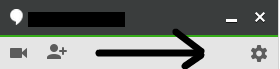
  • Click the gear icon at the top right.
    2015-07-07 12_02_22-#86 Hangouts - How to turn off Chat Notification - Google Docs.png
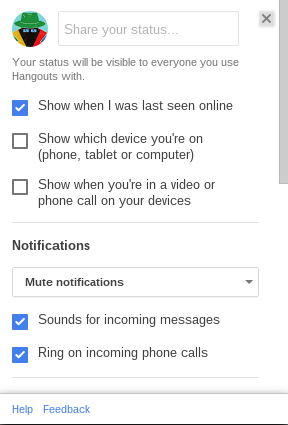
  • From the Options menu, make sure that Notifications is not checked.
    2015-07-07 12_15_37-Hangouts.png
    To put it simple:
    If Notifications is checked, that means you’ll receive notifications every time a new message appears.
    If Notifications is not checked, that means you’ll get no notifications letting you know there was a new message.
And that is how you turn off chat notifications in Hangouts!

For further reference:

If you’d like to learn more, you can check out the Google Help Center.
If you have a specific question that the Help Center doesn’t cover, then you can ask your question on the Google Product Forum.

Thanks for reading!
Hopefully you enjoyed the read and learned something new.
If you did enjoy reading, then don’t forget to share your newly learned wisdom on social media sites such as Facebook, Twitter, Google Plus, etc.

Is there anything that you’d me to blog about? If so, then post your suggestion in the comment section.

Best of Luck,
▬▬▬▬▬▬▬▬

W.C. Blitzy

Tuesday, June 23, 2015

#82 Hangouts - Report Feedback on the Hangouts Extension

Hi ya!

If you’ve installed the Hangouts extension for Chrome,  and have a feature suggestion or found a bug with the extension, then you can report feedback.

How to report Feedback on the Hangouts Extension
  1. First, make sure you have the extension installed (link to extension is above).
  2. Then, make sure the extension is enabled and to check to see sure if it’s on the top right of the browser - where all the extensions are kept.
    Capture 30.png
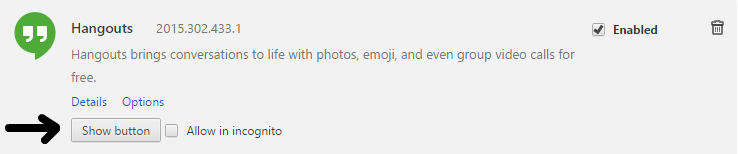
  3. If you don’t see it on the browser control bar (that’s what I’m calling it), then type in the Omnibox chrome://extensions > Search for the Hangouts extension > and click the Show button box.
    Capture 31.png
  4. Now that you have it enabled and on the browser control bar, you launch the extension.
    Capture 32.png
  5. Click the drop-box on the right of New conversation.
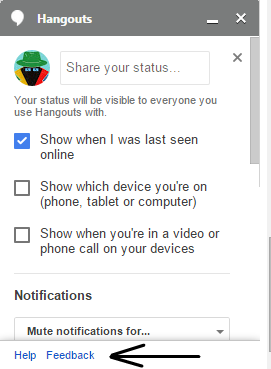
  6. At the bottom of the Hangout chat settings, click Feedback.
    Capture 33.png
  7. A new tab pops up giving you the ability to type up your feedback and submit it.
    Type what feedback you want to send the Google Hangouts team about their extension > click Send Feedback.
    Capture 34.png

And that is how you send feedback on the Hangouts extension!

For further reference:

If you’d like to learn more, you can check out the Google Help Center.
If you have a specific question that the Help Center doesn’t cover, then you can ask your question on the Google Product Forum.

Thanks for reading!
Hopefully you enjoyed the read and learned something new.
If you did enjoy reading, then don’t forget to share your newly learned wisdom on social media sites such as Facebook, Twitter, Google Plus, etc.

Is there anything that you’d me to blog about? If so, then post your suggestion in the comment section.

Best of Luck,
▬▬▬▬▬▬▬▬
W.C. Blitzy

Monday, April 27, 2015

#65 Hangouts - Use Hangouts in Gmail

Hi ya!

Google Talk or Hangouts?
Both are good in their own way.
However, it seems that Google is pushing Hangouts and is removing Google Talk.
With that being said, you may want to enable Hangouts on Gmail to test it out - if you haven’t already.
Here’s how to enable it.

Enable Hangouts on Gmail
  • Launch Gmail.
  • At the top of the Google chat list, click your name (or profile avatar).
Screenshot 2015-04-26 at 5.04.11 PM.png
  • Click Try the new Hangouts.
  • Gmail will then refresh. When it’s done reloading, you then can try Hangouts on Gmail!

“I don’t like the new Hangouts on Gmail! How do I go back to Google Talk?”
Good question!
You can revert to Google Talk at any time.
  • Launch Gmail.
  • At the top of the Google chat list, click your name (or profile avatar).
Screenshot 2015-04-26 at 5.07.45 PM.png
  • Click Revert to old chat.
  • Gmail will refresh. When it has finished reloading, you’ll have Google Talk back!

And that is how you use Hangouts in Gmail!

Summary:
  • Launch Gmail.
  • At the top of the Google chat list, click your name (or profile avatar).
  • Click Try the new Hangouts.
  • Gmail will then refresh. When it’s done reloading, you then can try Hangouts on Gmail!
To disable Hangouts on Gmail:
  • Launch Gmail.
  • At the top of the Google chat list, click your name (or profile avatar).
  • Click Revert to old chat.
  • Gmail will refresh. When it has finished reloading, you’ll have Google Talk back!

References:

For more information, check Google’s help center!
Talk to Hangout users just like you!

Thanks for reading!

If you enjoyed reading this blog post, please share it on social media sites such as Facebook, Twitter, Google +, etc. That’ll help me out a lot!

See an improvement? Tell me in the comment section!

Is there something you want me to blog about? Post that in the comment section as well!

Best of Luck,
▬▬▬▬▬▬▬▬

W.C. Blitzy
Saturday, February 28, 2015

#49 Hangouts - Report Feedback on Hangouts App

Hi ya!


First off, this is a change of pace for me, eh?


Now, on to the blog!


Have you used the Hangouts app found in the Chrome Webstore?
See some features that you think Google should add to it? Don’t like some features that you think should be removed? Do you wish you could voice your opinion to Google about your suggestions to improve the Hangouts app?
Well, you can! And this blog post is going to show you how!


What are we waiting for? Let’s get started!


How to send feedback to Google about the Hangouts app


  • Open the app.
  • It should look something like this:
    Screenshot 2015-02-27 at 11.png
  • In the top right corner, you’ll see the gear icon. Click that.
  • And you should see this popup:
    Screenshot 2015-02-28 at 12.06.51 AM.png
  • At the bottom of that, you should see “Feedback”
  • Click that.
  • Another popup will appear where you can write your feedback.


And that is how you report feedback to Google about the Hangouts app.


Summarize:
  • Open the app.
  • In the top right corner, you’ll see the gear icon. Click that.
  • A popup appears.
  • At the bottom of that, you should see “Feedback”
  • Click that.
  • Another popup will appear where you can write your feedback.


Resources:


For more information, check Google’s help center!
Talk to Hangout users just like you!


Thanks for reading!


If you enjoyed reading this blog post, please share it on social media sites such as Facebook, Twitter, Google +, etc. That’ll help me out a lot!


See an improvement? Tell me in the comment section!


Is there something you want me to blog about? Post that in the comment section as well!


Best of Luck,


▬▬▬▬▬▬▬▬

W.C. Blitzy